









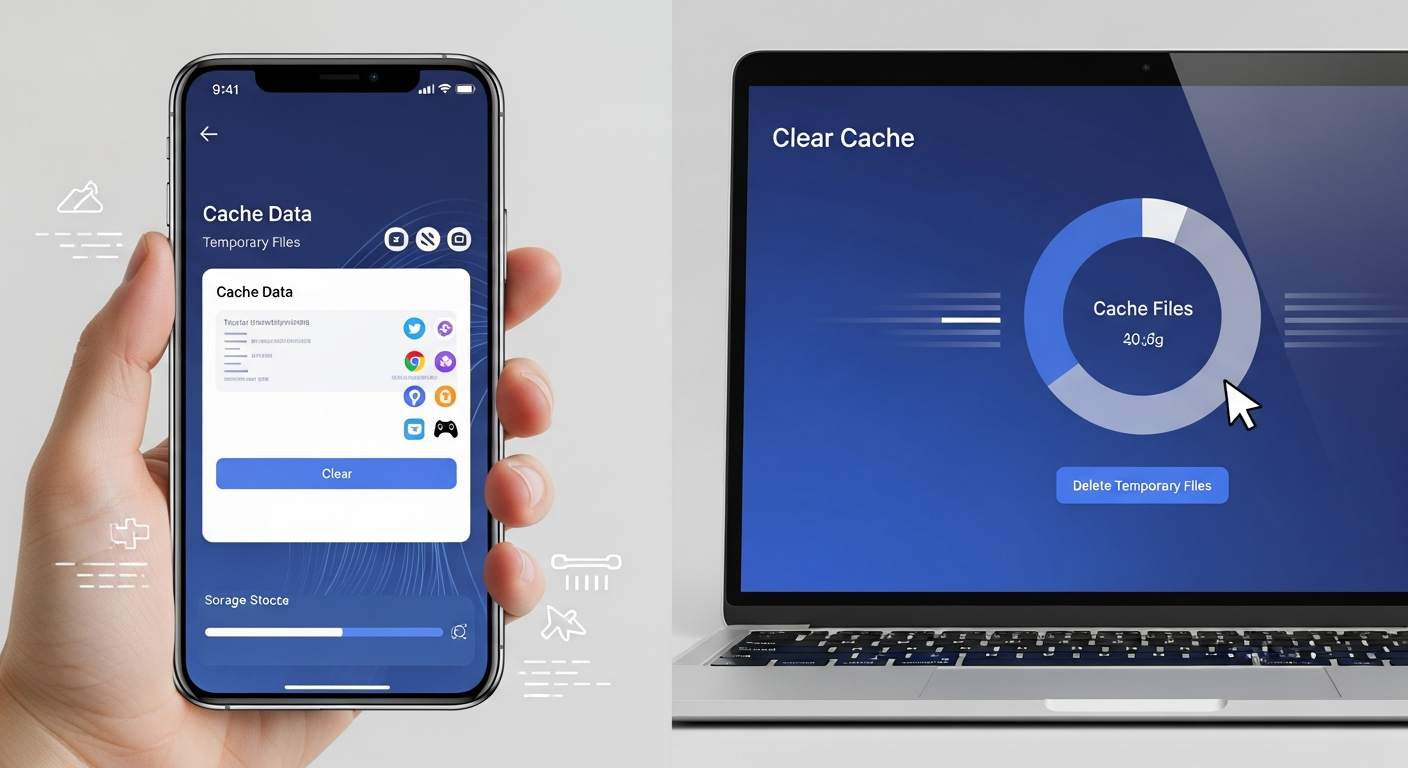
Clear Cache is one of the easiest ways to make your phone, tablet, or computer faster. Every app on your device stores some temporary files called cache. These files help apps open quickly and remember what you did before. But over time, too much cache can slow down your device. Sometimes, it also makes apps stop working properly or freeze. By learning how to clear cache, you can fix slow apps, free up storage, and make your device run smoother. This guide will show you simple ways to clear cache on Android, iPhone, and even web browsers. You do not need to be a tech expert to follow these steps, and the results can be almost immediate. Clearing cache does not delete your important files like photos, videos, or messages.
It only removes temporary files that your device does not need anymore. Some people think clearing cache is risky, but it is actually very safe and even recommended by phone and app makers. Many users forget to clear cache for months or years, and that’s why devices start running slowly. By making clearing cache a regular habit, you can enjoy faster apps and more free storage. In addition, clearing cache can sometimes solve app crashes or problems with loading web pages. For example, if a website does not load correctly, clearing the browser cache often fixes the issue. Apps like Facebook, Instagram, and TikTok also use cache to remember login details and preferences. If these apps start freezing or showing old content, clearing their cache.
Clear Cache on Android: Step-by-Step Guide for Beginners
Clearing cache on Android is easy and can make your phone much faster. First, go to Settings and then Storage. Look for the option called Cached Data or App Cache. Tap on it and confirm to clear the cache for all apps. If you want to clear cache for a specific app, go to Settings, then Apps, choose the app, and select Storage. Tap Clear Cache. This removes temporary files that slow down your phone but does not delete your important information like photos or messages. Doing this regularly helps your Android phone run smoother, makes apps open faster, and frees up storage. Even beginners can do this without any worry, and it only takes a few minutes.
Clear Cache on iPhone: Make Your Device Fast Again
Clearing cache on iPhone is slightly different but also simple. iPhone does not have a general cache clearing option, but you can clear cache for Safari by going to Settings, then Safari, and tapping Clear History and Website Data. For apps, the easiest way is to uninstall and reinstall them, which removes cached files. Some apps also have built-in cache clearing options inside their settings. Clearing cache on iPhone helps your device run faster, reduces app freezes, and saves storage space. This process is safe and does not remove your personal files or passwords. Making cache cleaning a habit keeps your iPhone smooth and responsive all the time.
Why Clearing Cache Helps Speed Up Apps and Phones
Clearing cache is important because temporary files can build up and slow down your device. Every app stores data to remember what you do and to open faster, but when this data grows too large, it can cause lag, crashes, or slow loading times. Clearing cache removes old files that are no longer needed, giving your phone or tablet more space to work. This makes apps run smoother, websites load faster, and your overall device speed improve. Even computers and web browsers benefit from cache cleaning. By understanding the importance of clearing cache, you can avoid frustration, enjoy faster performance, and keep your devices working like new.
Clear Cache on Web Browsers: Chrome, Safari, and Firefox Tips
Web browsers also store cache to make websites load faster, but old cache can cause problems. To clear cache in Chrome, go to Settings, then Privacy and Security, and select Clear Browsing Data. For Safari, go to Settings, then Safari, and tap Clear History and Website Data. Firefox users can go to Settings, then Privacy, and select Clear Private Data. Clearing browser cache removes temporary files, old images, and outdated scripts that may slow down loading times. This is especially useful when websites do not display correctly. Regular cache clearing helps your browsing stay fast, improves page loading, and fixes display errors without losing your saved passwords or bookmarks.
When to Clear Cache: Signs Your Device Needs It
You should clear cache when your device starts slowing down or apps freeze frequently. Other signs include storage warnings, apps taking too long to open, and websites not loading properly. Games may lag or crash if cache files are too large. Even when your phone or tablet seems fine, a build-up of cache over time can gradually slow it down. Regularly checking storage and app performance helps you decide when to clear cache. Clearing cache at the right time prevents frustration, keeps apps running smoothly, and avoids storage problems. By paying attention to these signs, you can maintain your device’s speed and efficiency without any technical trouble.
Safe Ways to Clear Cache Without Losing Important Data
Clearing cache is safe and does not remove your important files like photos, messages, or passwords. Always choose the Clear Cache option rather than Clear Data, because Clear Data deletes app settings and personal information. Using built-in options in Android, iPhone, or app settings ensures safety. Some cleaning apps can help you clear cache with one tap, but make sure you use trusted apps. Always back up important information before using cleaning tools if you are unsure. By following safe methods, you can remove unnecessary temporary files, free up storage, improve speed, and keep your personal data intact. Clearing cache becomes a safe habit when done properly.
Clear Cache for Games: Stop Lag and Crashes Easily
Games use cache to store graphics, levels, and user preferences to load faster. However, when cache files grow too large, games may lag, freeze, or even crash. Clearing cache for games removes old temporary files while keeping your saved progress safe. On Android, go to Settings > Apps > Choose Game > Storage > Clear Cache. On iPhone, you may need to reinstall the game or use in-app cache clearing options if available. By clearing cache regularly, your games run smoother, load faster, and avoid freezing during play. This small step improves your gaming experience and ensures your device has enough free storage to handle new game updates and features.
Conclusion
Clearing cache is a very simple way to make your phone, tablet, or computer faster and smoother. It removes old temporary files that slow down apps without deleting your important information. Regularly clearing cache helps apps run better, games load faster, and websites display correctly. Even beginners can do it easily using built-in options or trusted cleaning apps.
When you clear cache, you give your device more storage space to work, which improves performance and reduces lag. It also prevents crashes and freezes in apps and games. By paying attention to signs like slow loading or storage warnings, you can know when it is time to clear cache.
Making clearing cache a habit keeps your devices working like new. It is safe, easy, and takes only a few minutes. You do not need to be a tech expert to do it, and the results are immediate. Your device will feel faster, smoother, and more enjoyable to use every day.